Getting started
You can use the learner logbook app to:
- record trips you take with a supervisor driver
- send an email with trip details to your supervisor driver for their approval
- submit your logbook to us for final assessment once you have reached the required hours.
Getting around the app
- Tap the menu
 icon in the top left corner to access any section in the app.
 - Tap the plus
 icon to add a new trip, supervisor or vehicle.
 - Tap the sync
 icon to manually sync your data when you're connected to the internet.
The learner logbook app has 6 screens:
Before you can start adding trips in the app, you must add at least 1 vehicle and 1 supervisor.
Summary
You can use the summary screen to check your progress and add new trips, supervisors and vehicles.

On the Summary screen, you can:
- see the number of hours you've completed, and how you're progressing against your requirement
- add a trip, vehicle or supervisor by tapping the plus icon at the top of the screen or the green plus button at the bottom right of the screen
- sync data from your app to our servers by tapping the sync icon
- submit your logbook to us for review. Once you’ve reached your target hours, a Submit logbook button will appear on this screen.
Vehicles
When you add a trip, you'll need to tell us which vehicle you drove.
Once you've created a vehicle, you'll be able to select it from a list for future trips without having to re-enter its details.

On the Vehicles screen you can:
- add a vehicle by tapping the plus icon at the top of the screen. You'll need to enter a name and number plate for your vehicle. Once you've added a vehicle, you'll be able to use it for future trips.
- mark a vehicle as a favourite by tapping the star icon on their entry - this means it will show up first when you create a trip
- edit a vehicle you've already added by tapping it and updating its details
- delete a vehicle by swiping left on its entry, then tapping the Delete button that appears

Note: you can't delete a vehicle you've used for a trip unless you delete the trip first.
Supervisors
When you add a trip, you'll need to tell us who supervised you.
Once you've created a supervisor, you'll be able to select them from a list for future trips without having to re-enter their details.

On the Supervisors screen you can:
- add a supervisor by tapping the plus icon at the top of the screen. You'll need to enter their name, licence number, contact details, and tell us if they're a driver trainer*
- mark a supervisor as a favourite by tapping the star icon on their entry - this means they'll show up first when you create a trip
- edit a supervisor you've already added by tapping their entry and updating details
- delete a supervisor by swiping left on their entry, then tapping the Delete button that appears
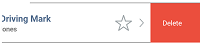
Note: you can't delete a supervisor you've used for a trip unless you delete the trip first.
*When you add a driver trainer as a supervisor for a daytime trip you'll get triple time (for example, a 1 hour trip with a driver trainer will count as 3 hours). You can do this for up to 10 hours, which will count for 30 hours.
As long as you mark the supervisor as a driver trainer when you add them, the app will calculate the triple time automatically.
Trips
Before you can add a trip, you'll need to add the supervisor and vehicle details in the app.
When you add a trip, you'll have to include details such as where you went, how long you drove, which vehicle you used and who supervised the driving.
The app has 2 options for adding trips:
- you can add a timed trip, which uses the app’s timer to keep track of when you started and when you finished
- you can also add a trip after you’ve taken it—you’ll need to enter the start and finish times yourself.
Make sure you follow the rules for driving with a mobile phone at all times.
Once you've finished adding a trip and synced your app data, your supervisor will get an email with the details, and they'll have the option to approve or reject the trip.
If they approve, the trip will be added to your Approved trips when your app data next syncs and will count towards your total.

On the Trips screen you can:
- add a trip by tapping the plus icon at the top of the screen or the green plus button at the bottom right of the screen. You can either:
- add a timed trip while you're taking it using the app's built-in timer
or - add a trip you took earlier by entering the date and time of the trip
- add a timed trip while you're taking it using the app's built-in timer
- submit the trip to your supervisor to confirm the details you recorded
- view trips that your supervisor hasn't checked yet under the Not Approved tab, and trips your supervisor did not approve under the Rejected tab
- edit a trip by tapping it and changing details (your supervisor will need to approve it again)
- delete a trip by swiping left on it, then tapping the Delete button that appears

- send your supervisor another email for a trip by tapping a trip then tapping the menu
 icon in the top right corner.
Night hours
If part of your hours were between sunset and sunrise, tap the Night time travel? toggle and enter how much of the trip happened at night. When your trip is approved, this time will count towards your total hours and your night driving hours.

Trips with a driver trainer
If you take a trip with a driver trainer, the trip time will be counted as triple. You can take up to 10 hours of trips with a driver trainer to get 30 hours towards your total.
When you add a trip with a driver trainer as your supervisor, the app will add your triple time automatically.
Driving time with a driver trainer can be counted either as triple time or night driving, not both. If you take a trip with a driver trainer and choose the Night time travel option, the app will display a message asking you to turn it off if you want to receive triple time.
Profile
The profile screen allows you to update your details, export your progress, change your hours or delete your account.
When your logbook account is deleted, all data you’ve entered into the app, including trips, will be removed from all devices. This data can’t be recovered by you or by us and can't be used for a future logbook submission.
We don’t recommend deleting your account until you have finished recording your hours and your logbook has been assessed and accepted by us.
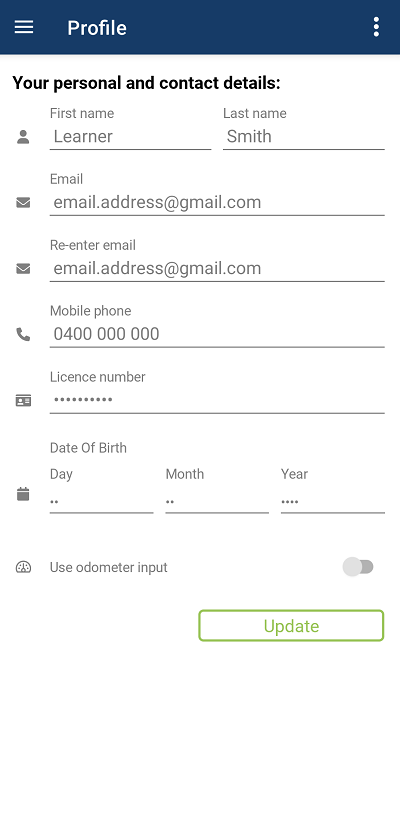
On the Profile screen you can:
- update the details you gave us when you registered for the app (name, date of birth, licence number and contact details)
- tap the menu icon in the top right corner to:
- change your password
- email your progress
- change your target hours, if we've asked you to complete extra hours or you've completed driving hours outside of the app
- delete your account.
Help
Get more info about the app and other transport and motoring services.

On the Help screen you can:
- access more in-depth help content for the learner logbook app
- find out about driving with a learner licence
- read the terms and conditions for the app
- access TMR's online services and rego check app
- see the version of the app you're running under the About option.
Need more info?
Check out our help page for step-by-step guides and answers to common issues.