Your business and the Digital Licence app
If your business or organisation needs to verify customer information (such as age, identity, authority to drive or other details), your customer may use the Digital Licence app to present this information to you.
The Digital Licence is legally equivalent to the physical licence under Queensland law.
You don't need to purchase any specific equipment to verify the Digital Licence.
If you suspect a customer's Digital Licence is fake, follow your business processes for customers presenting false ID. You cannot take possession of their mobile phone unless authorised by law.
On this page
How to verify customer's information
There are 2 ways you can verify a customer's information when they use the Digital Licence app. You can:
- digitally scan their Digital Licence app
- get a PDF of their information.
For low-risk transactions, you can visually check a customer's Digital Licence, but it is recommended that you use digital scanning or the PDF export.
Digitally verifying a Digital Licence
To scan a customer's Digital Licence, you can use:
- your Digital Licence
- the Digital Licence Verifier
- a compatible third-party app.
This is the safest and most secure way to verify their information and will give you confidence that it’s genuine.
How to digitally verify customer information
Queensland's Digital Licence app.
Learn how to digitally verify your customer's information.
Open your app and select the information you want verified from your customer.
This will change depending on what you’re checking.
Next, do you need to retain the customer's information?
Toggle the button to confirm if you are retaining their information or not.
Ask your customer to select Show QR on the bottom of their Digital Licence app.
This will bring up a QR code on their device.
Use the app on your device to scan the QR code.
A notification will appear on the customer’s device, asking for their consent to share the requested information, or not.
If your customer gives their consent your apps will start to share the information.
Once sharing is finished, your customer will receive a notification that sharing was successful, and you will receive the requested information, displayed on your device.
Contact us if you need any support.
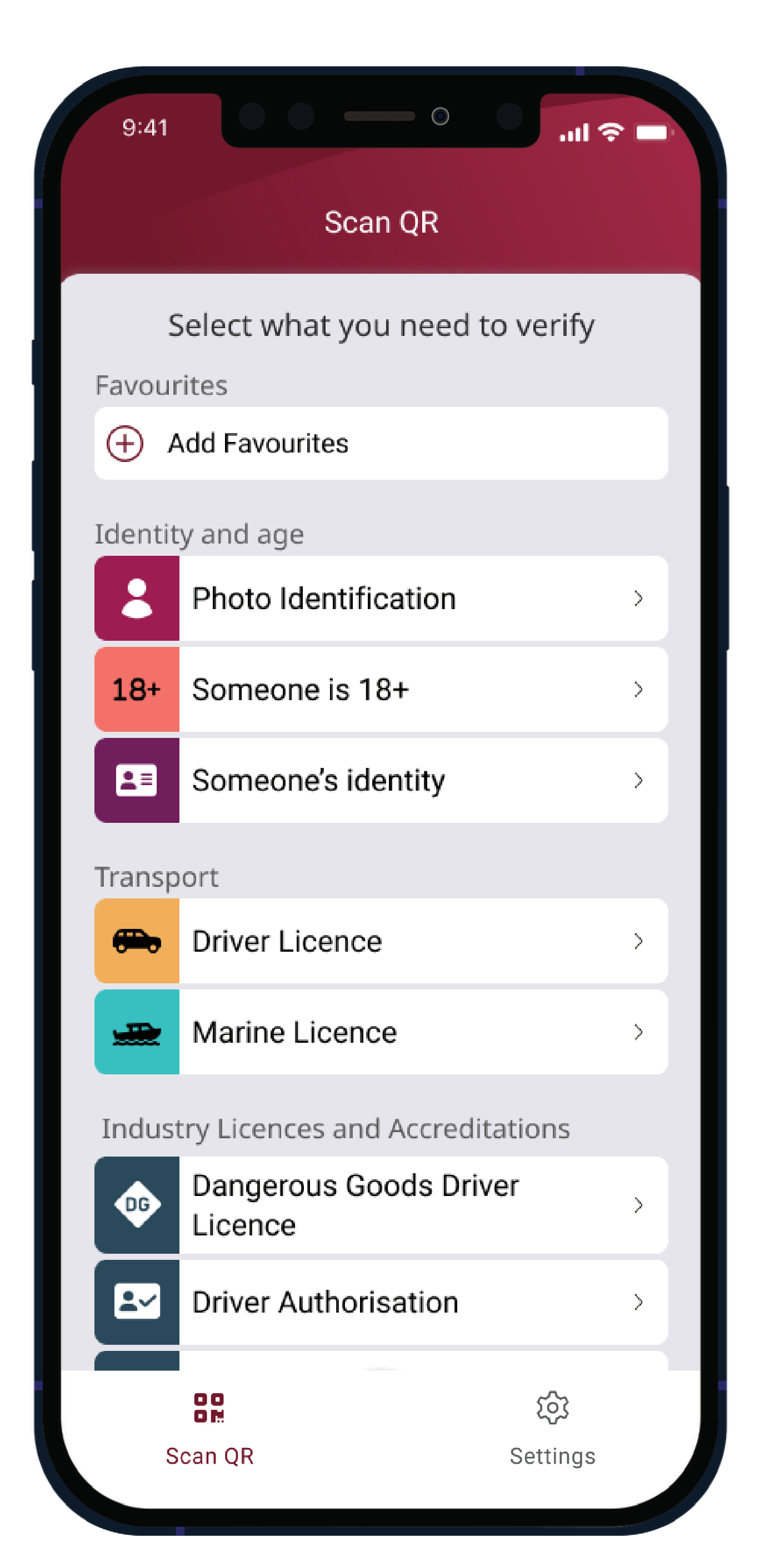
Follow these steps to digitally scan your customer's Digital Licence app:
- Select Scan QR in the app.
- Select the information you need from your customer.
A list of credentials and information bundles will appear - choose the one you need. - Select if you are going to retain the customer's information after you scan it.
- Select 'Scan QR'.
- Scan the customer's QR code.
- The customer will be told what information you have asked for and whether you will be retaining their information.
- If they consent your app will receive their information.
The information you have asked for will be presented on your app. You can then use it to verify information they have provided or retaining it in a separate system.
Verifier for Digital Licence app
The Verifier for Digital Licence is a standalone app developed to scan ISO-compliant Digital Licence QR codes. The app is available to download from the Google and Apple app stores. You don't need a log in to use the verifier app.


Getting a PDF of the customer's information
The Digital Licence app allows the customer to export their information as a PDF document. This document contains all the information on a physical credential, including name, date of birth, licence number and address.
- Ask the customer to use their app to share their licence (or other credential) as a PDF.
- The customer can transfer the PDF document to you using SMS, email or any other native sharing function on their device.
About the PDF timestamp
At the top of the PDF, directly above the customer's photo, there is a line stating when the document was generated and digitally signed, with a date and time. This is the date and time that the customer onboarded, securely reset, or last had their information change within the app.
It does not get updated when the customer selects the PDF option, which means it could be a date/time that is not recent. If you have any concerns, please visually check the information in the PDF against their Digital Licence app screen.
Validating the PDF
PDF documents shared from the Digital Licence app are 'signed' using a secure electronic certificate. This signature can be validated to ensure the PDF provided by the customer is legitimate and from the original creator of the PDF. The original creator is the Department of Transport and Main Roads.
You will need to go through a series of steps to validate that the Digital Licence PDF which has been provided to you is genuine. You will only need to go through steps once, and you will then be able to validate all Digital Licence PDFs.
Before you open the PDF
- Open Adobe Acrobat Reader.
- Click Menu in the top left corner, and then Preferences.
- In the window that appears, select Trust Manager.
- In the main window, the third option will be 'Automatic Adobe Approved Trust List (AATL updates)'. In this box, ensure 'Load trusted certificates from an Adobe AATL server' is ticked, and click 'Update Now'.
- In a few moments, a window will come up saying 'Security settings have been successfully updated.' Click OK in the bottom right corner.
- In the left column, select Signatures.
- In the main window, you will see a box titled Verification. Click the 'More...' button in that box.
- At the top, tick the box next to 'Verify signatures when the document is opened'.
- Click OK, and then OK again.
Open the PDF
When the PDF is open, after a few moments, you should see a blue bar at the top that says 'Signed and all signatures are valid.'
In the blue bar, click 'Signature Panel'. In the Signatures panel that appears, you should see, 'Rev. 1: Signed by Department of Transport and Main Roads <dlpki@qld.gov.au>'.
This means the PDF is a valid export of a customer's driver licence, marine licence or photo identification card.
If you encounter an altered PDF, follow your usual business processes for customers using a false ID.
If you want to integrate the Digital Licence into your existing systems to capture and store customer information, please contact digitallicence@tmr.qld.gov.au to discuss your options with the project team.
Retaining your customers' information
As part of your business processes, you may need to retain (as in keep and store) the information presented to you by a customer. The Digital Licence app PDF export of a customer's information is the easiest way to do this.
Alternatively, when you digitally scan a customer's Digital Licence, you may wish to retain the information they give you. If so, you should let the customer know you'll be retaining their information. They may ask how their information will be managed, and to see your privacy policy.
The Digital Licence and Digital Licence Verifier app cannot retain the information the customer gives you. If you are going to retain customer information after scanning, you will need to do so in a third-party system.
How to visually check a Digital Licence
You can visually check a customer's information by asking them to show you their digital licence.
You should only use a visual check for low-risk verification. Although it is the quickest method of checking a customer's Digital Licence, the other methods are more secure.
The Digital Licence contains visual features to help you identify that it is current and genuine.
All of these features should appear on the customer's Digital Licence. If they are not present, or if you have any concerns, you should digitally verify the customer’s Digital Licence.
'Information was refreshed online' date and time
- This is displayed beneath the user's picture and shows the last date and time that the app was opened and updated.
- The app updates every time it is opened, if data service is available.
- If this date and time is far in the past, and you know that data service is available where you are, you can ask a customer to return to the Digital Licence home screen and pull down on the screen of their device. This should update their information, and the 'Information was refreshed online' date and time should become current. The customer will also need to ensure they have turned data on in their settings for the Digital Licence app.
- If they are not able to return to the home screen, you may be looking at a fake ID and not the live, genuine Digital Licence app.
Pulsing Queensland Government crest
- A light grey version of the Queensland Government crest should be displayed behind the user's information and be pulsating (regularly changing in size between larger and smaller).
- If this image is not moving, you are looking at a fake ID and not the live, genuine Digital Licence app.
Ability to scroll to see information
- Generally, not all customer information will display on a single screen on a device.
- The user should be able to scroll up and down within the credential screen to show you that all of the fields are present.